Morph targets allow the animator to define an area of an object, move it and then animate (tween) between the two states (un-morphed and morphed). In Carrara the morph targets are keyframe animatable. Therefore you can take advantage of the facilities in the sequencer (such as easing in and out).
The video shows how to use morph targets for animation avoiding Poser figures and using low poly objects instead. The reason I point this technique out for low poly figures is that with some care you can avoid having skeletons attached to your objects.
To export an AniBlock from DAZ Studio to Carrara, you’ll need to bake to studio keyframes first. This video shows why and the correct way to export Aniblocks from Daz Studio and into Carrara.
ScifiFunk talks as a filmmaker about building a large-environment set for his 3D movie.
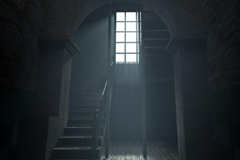
In Part 1 I show a render tour of the set so that you can see what the final set looks like. The set is rendered in Carrara with no post work. The 3d models used in the set come from a variety of artists (with lots from Stonemason), plus include my own edits of these models (to fit the set) plus some 3d models that I had to make myself.
I explain how I reduce costs in 3d model buying and how I can construct a realistic looking scene via online location scouting.
This guide to keeping your file size small starts with a look at your choice of 3d models. However even these can be reduced quite dramatically. In the example shown I reduced Stonemason’s “faded industry” from approx 1600k to approx 500k a whopping 66 percent saving!
After creating all these mini scenes of indiviual buildings, you can merge the scenes (import them in Carrara) to create your composite scene. https://www.youtube.com/user/SciFiFunk
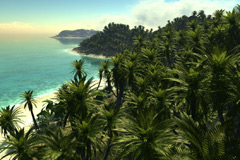
Dartanbeck’s EnvironKit leverage the power of Carrara’s nature, terrain, and environment tools. While he builds a complete scene you will see how he has saved plant and terrain elements as browser presets that can quickly add an extensive natural environment around your subject. Many great tips are shared here!
Dartanbeck’s EnvironKit series leverage the power of Carrara’s nature, terrain, and environment tools. While he tours this extensive product you will see how he has organized light and sky elements into presets that can be loaded from the browser, and created custom morphing helper objects to control the distribution of Carrara’s clouds using surface replicators.
To me, Project Dogwaffle Pro: Howler is the perfect addition for applying post-work to my rendered animations from Carrara prior to the final production editing. I plan to do more video tutorials on some of these subjects, and discuss them quite a bit at the Carrara Discussion Forum at DAZ 3D.com
In this tutorial I slowly proceed through the process of using Howler’s Roto tools from within it’s curve tool to create an animated selection for the use of adding a post-work motion trail to the part of the animation where I want the effect to take place. In my own production, I would take less time doing the process, but would focus more on the final result, rather than just getting to the end of the process. For example, if I kept going with the project as it was by the end of this tutorial, I would undo the animated effect that I end with, and tweak the settings or perhaps even reshape the entire animated roto selection and start from scratch. The end result of this one was just a simple run through so that I could explain the tool, not focus on a great end result.
That all said, I find it much easier, faster, and much more predictable to add blurs and such to final rendered animations, rather than to use the included post working in Carrara. But in times before owning Howler, this was not the case, and I got pretty far with doing much of my work using only Carrara, as it has the ability to load it’s own end results and work with them further, and render them again to a new animated clip. So I’m not trying to discount Carrara’s fine features, or the fact that they are included in the amazing Carrara software. It never ceases to amaze me at how much work can be done without ever leaving it.
There are times when we’ll get a perfect rendered animation with the exception of a few little flaws. These flaws can create the need to destroy the render and try again, often trying to increase some setting or other in an attempt to correct the inaccuracy, or whatever went wrong. This adds even more time as now the render times per frame are also increased!
Since I’ve owned Howler, however, I would far rather use this amazing roto tool setup to quickly correct the issue with the original render. In my learning how to do that, I’ve found that we can truly do limitless wonders to our clips without the need of the really expensive alternatives to getting our hands on abilities like these. And the ability to save lengthy renders has been a huge blessing! Project Dogwaffle’s Howler is a lot more than I would have imagined it to be, and I’m really grateful to have found it.
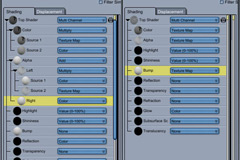
In this first installment, I begin to cover the complexities of Carrara’s powerful shader system. This is part 1 in a short series intended for new users of Carrara. In Part 1 I start by loading Daz3d’s V4 figure and demonstrate how to perform simple shader tweaks to get her to look properly. Part 1 ends as we begin to explore how to make full use of specular and bump maps, and I’ve already provided a decent amount of detail to get one going on adjusting the Highlight and shader channels, with some measure of explanation towards what they do together, with the available light in the scene.
By the end of this series, I’ll have covered a simple outline to shaders – but hopefully enough to get Carrara users in to that texture room with a bit more understanding of what’s going on. After I complete more in the general walkthrough topics, I’s like to revisit many topics, such as this one, and explore in much greater depth. Shaders are a really in depth topic in Carrara, as there is so much that we can do inside that console – to get our models looking however we want them to look. One of my favorite aspects of Carrara!




 Saving...